Purpose
This guide explains how an eligible Delivery Service Partner (DSP) processes the Amazon-funded "DA Recognition – Together We Appreciate" bonus program in UZIO Payroll for delivery associates (DAs).
- The incentive is issued to eligible DSPs, who then pass it through to DAs in the subsequent pay period.
- The "Together We Appreciate" bonus is discretionary under the FLSA — it is not included in the regular rate of pay, and no overtime recalculation is performed.
- The earning type is approved by Amazon for the DA Recognition – Together We Appreciate program.
For the Amazon-funded non-discretionary bonuses (Realtime / Lookback, which do trigger OT true-up), see Processing Non-Discretionary Incentives (Amazon-Funded).
Note — Frontrunner of the Year: DSP accounts also have a second discretionary earning, "Frontrunner of the Year", for that Amazon recognition program.
- Like DA Recognition – TWA, it is discretionary.
- Its Include in Overtime setting is locked to No, so paying it never triggers an OT recalculation.
- Process it through the same earnings-import steps described below.
Who can do this: Employer Administrators / payroll users on an eligible DSP account.
1. Create the earning code — one-time setup
Complete these steps once to add the earning to your account. If it already exists under Company Earnings, skip this section.
Important — check eligibility first. Only DSPs that Amazon has confirmed as eligible should complete this setup.
- The "DA Recognition — TWA" earning type is selectable in UZIO, but don't proceed unless Amazon has explicitly confirmed your DSP is enrolled.
- Eligible DSPs receive a PDF communication from Amazon with the program details.
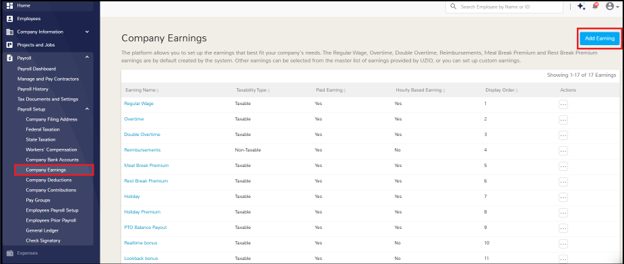
- Go to Employer Portal → Payroll → Payroll Setup → Company Earnings.
- Click Add Earning (top-right).
- In the Add Earning form, set Earning Type to "DA Recognition — TWA". The rest of the setup — including the earning name — auto-populates; keep the defaults.
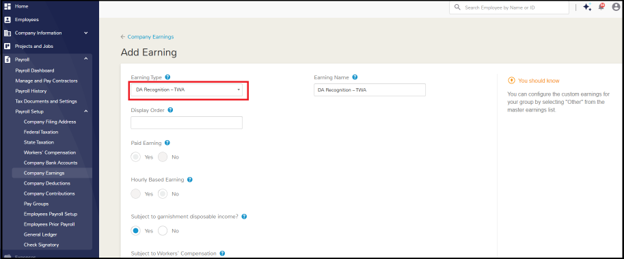
- Set the Display Order — the one field you choose yourself. Enter any number not already in use (or find the highest display order in the Company Earnings list and add 1).
- Click Save. The earning appears in your Company Earnings list and is available in payroll runs.
Note: This is a one-time setup per DSP. After the earning exists, go straight to payroll to pay eligible DAs.
2. Entering the bonus amounts
When you receive the bonus information from Amazon, enter it into the next regular payroll using bulk upload (recommended) or manual entry. Both produce the same paycheck result.
2.1 Bulk upload (recommended)
Amazon provides a PDF listing each eligible DA and the bonus amount. Download the UZIO template, copy the amounts from the PDF into it, and upload.
Copy carefully and double-check each amount against the PDF before uploading, to reduce the risk of errors.
- Start regular payroll — Payroll → Payroll Dashboard → Start Regular Payroll for the period the bonus will be paid in.
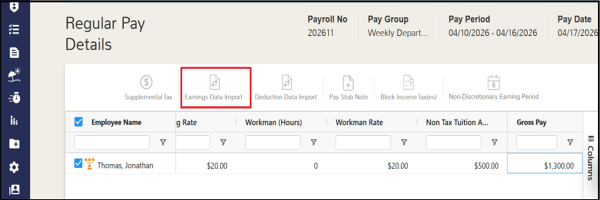
- Open Earnings Data Import and download the template. At the top of the Regular Pay Details grid, click Earnings Data Import, then click the Template link.
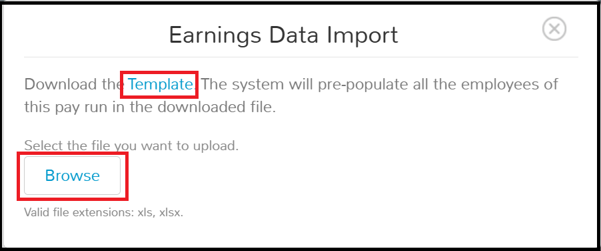
- The template includes all employees in the current pay run.
- It contains a DA Recognition column.
- Fill in the amountsfrom Amazon's PDF.
- For each listed DA, enter the amount in the DA Recognition column.
- Leave it blank for employees not on the PDF.
- Save the file.

- Upload. Back in the dialog, click Browse, select the completed file, and click Upload.
- UZIO validates the file and applies the DA Recognition bonus to each listed employee.
- No OT recalculation is performed, because the bonus is discretionary.
- Continue payroll as usual — the DA Recognition line appears on the applicable paychecks; proceed to the Review Payroll Summary.
Good to know:
- The DA Recognition column only appears in the template after the earning is created (Section 1). If the earning exists but the column still isn't there, cancel the payroll, start a new one, and download the template again.
- Re-upload is supported — UZIO refreshes the amounts for the employees in the new file; no need to clear the previous upload.
Handling upload errors: on a validation failure the dialog shows "File upload failed due to data errors. Click here to download the error log." Correct the flagged rows and re-upload.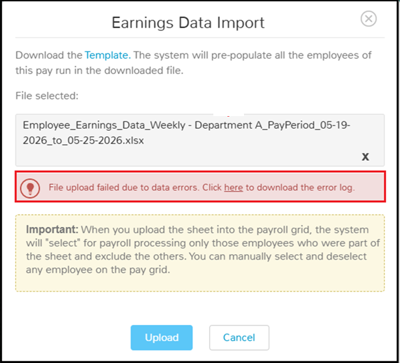
Click the “here” link in the error message to download the error log. The log shows an upload status and an Error List identifying each failing row by row number and reason.
| Error | Cause | Resolution |
|---|---|---|
| Employee not part of this pay run | The employee isn't in the current payroll (terminated, inactive for the period, or a different pay group). | Remove that row and re-upload; process that DA's bonus through a Special (off-cycle) Payroll for the period they were active. |
| Amount invalid | The bonus amount cell is non-numeric. | Enter a valid positive amount in the source data and re-upload. |
If the error log reports something the guidance above doesn't cover, contact UZIO Support at support@uzio.com.
2.2 Manual entry (alternative)
Key the amounts directly on the Regular Pay Details grid using Amazon's PDF as your source — for small runs, a missed associate, or an Amazon-side correction:
- In the Regular Pay Details grid, locate the DA Recognition column.

- Enter the bonus amount in the DA Recognition cell for each applicable employee. Save.
3. Review & reconcile before approving
- Continue to Review & Approve (the last step before approving).
- Click Download Payroll Register (one-click from that screen). It lists every earning line, including the DA Recognition bonus.
- Reconcile against Amazon's supplementary report — DA Recognition amounts should match the template uploaded.
- If a discrepancy appears, click Back, correct the employee via Manual Entry (Section 2.2), move forward, and re-download the register.
- When the register is reviewed, reconciled, and matches the expected totals, approve the payroll.
4. Compliance
- The employer is responsible for its payroll submission and for compliance with all federal, state, and local laws.
- UZIO provides the calculation engine and audit trail.
- The employer is responsible for the underlying determination of bonus amounts, eligibility, and program design, including the discretionary classification of this bonus.
Need help?
- Contact your UZIO Customer Success Manager.
- Contact UZIO Support at support@uzio.com or +1-571-601-1752.
- Use the Help menu in the top-right of the Employer Portal.
Related articles
Was this article helpful?
That’s Great!
Thank you for your feedback
Sorry! We couldn't be helpful
Thank you for your feedback
Feedback sent
We appreciate your effort and will try to fix the article
